
Enable Custom Cursor in King Addons, choose its appearance and test the hover states with a mouse. Keep normal touch navigation available.
Before you start
A mouse or similar pointer for the effect. Magnetic and image cursor options require Pro.
Set it up in WordPress
Open Custom Cursor
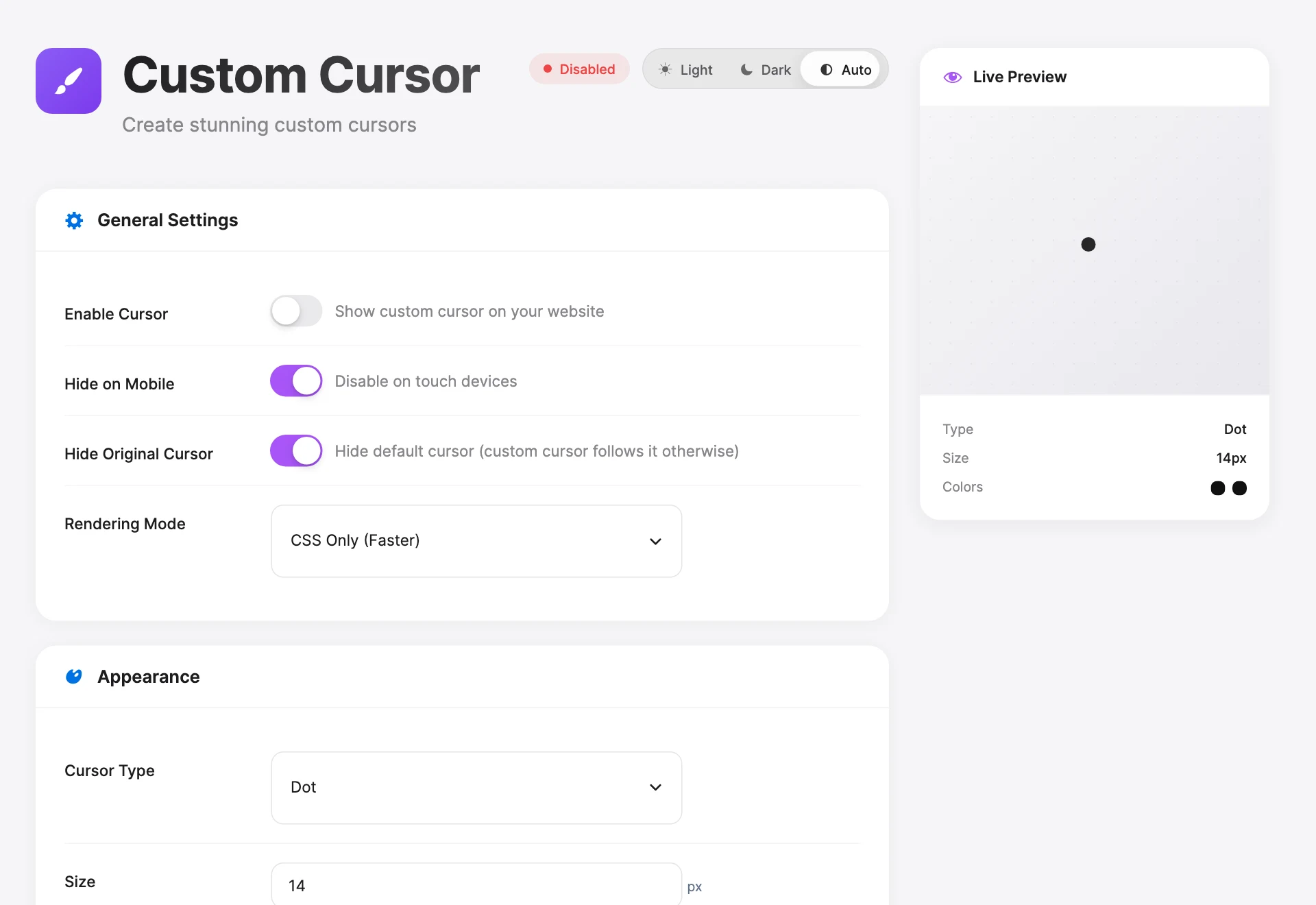
Find Custom Cursor under King Addons and review General Settings before turning it on.
Choose the pointer appearance
Configure the available preset and design controls. Keep the cursor visible against both light and dark page sections.
Set hover behavior
Review how links and buttons react. Use the Pro magnetic or image options only when the active plan supports them.
Keep touch devices usable
Review Hide on Mobile and check that hiding the visual cursor does not remove normal buttons, links or focus states.
Test several page types
Try the pointer over navigation, form fields and dialogs. Confirm that the native action remains easy to understand.
Check the result
Check a desktop mouse, keyboard focus and a touch device. Do not rely on the cursor effect to communicate the only available action.
Common questions
Does this add a cursor to a touchscreen?
The visual effect is intended for pointer devices. Keep the site usable with ordinary touch interactions.