
Create a Single template in King Addons Theme Builder, choose All Posts and build a layout that reads the current post’s content.
Before you start
WordPress posts, Elementor and King Addons. Custom post type locations and some advanced conditions require Pro.
Set it up in WordPress
Create a Single template
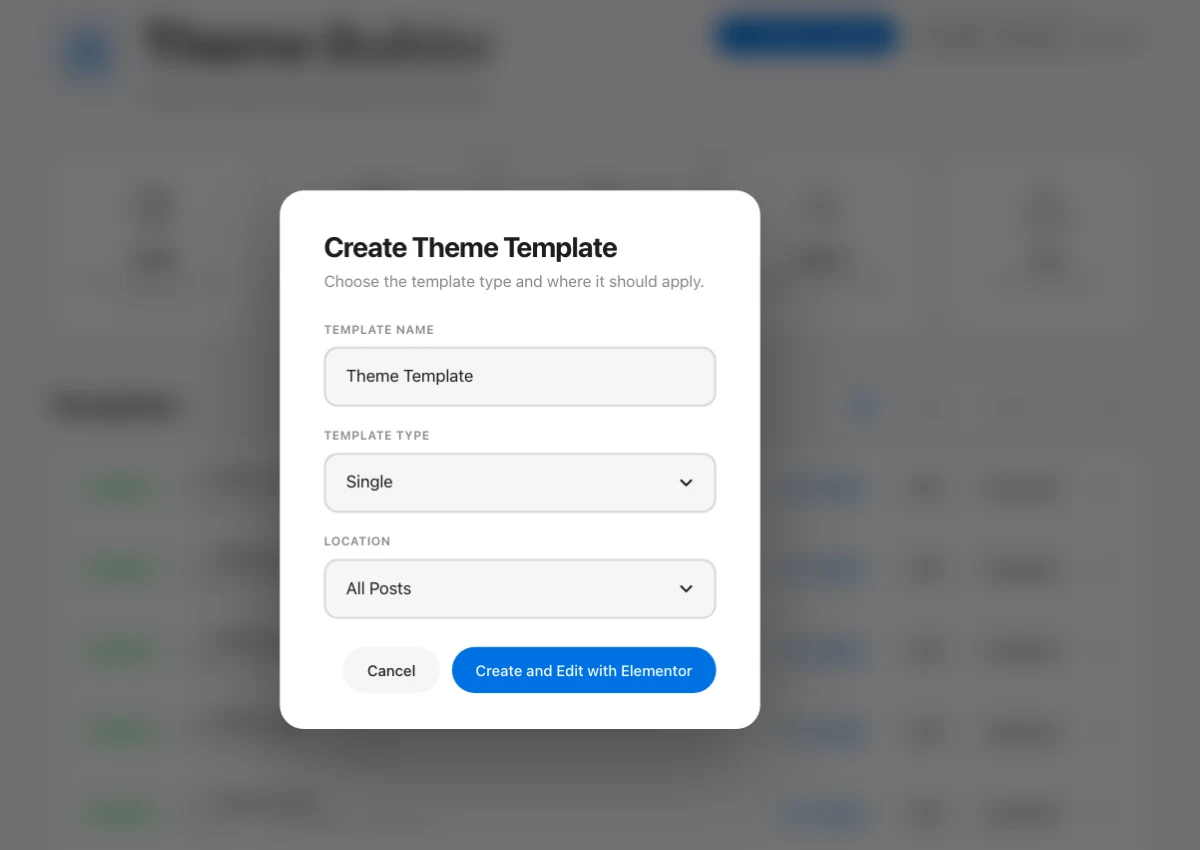
Open Theme Builder and click Add New Template. Choose Single and the All Posts location.
Use the current post content
Add the post title, featured image and post content through the matching widgets or dynamic sources. Avoid hard-coding one article into the reusable layout.
Preview representative content
Check a post with a long title and a post with several paragraphs. Review the image crop and text width at tablet and phone sizes.
Review matching conditions
Confirm where the template applies. Specific content rules and custom post type locations may require Pro; the picker identifies Pro locations.
Test a published post
Open an existing post in a separate visitor session. Confirm that it displays that post’s text and that another post uses its own data.
Check the result
Compare two different posts. Their content should change while the layout stays consistent.
Common questions
Can the Free builder target normal posts?
Yes. The reviewed Free locations include normal posts and pages.
What about a custom post type?
The Custom Post Types location is marked Pro.