
Use a King Addons ACF Field or ACF Image dynamic tag in a compatible Elementor control. Both ACF tag types require King Addons Pro.
Before you start
Elementor, King Addons Pro and Advanced Custom Fields. Use a text-compatible control for a field value and an image-compatible control for an image source.
Set it up in WordPress
Create a field group in ACF
Add the fields your content needs and give each one a clear name. Set location rules so the group appears on the intended posts or pages.
Fill in a sample entry
Save values on a real sample post before connecting the layout. A blank field cannot demonstrate a successful connection.
Open the dynamic content picker
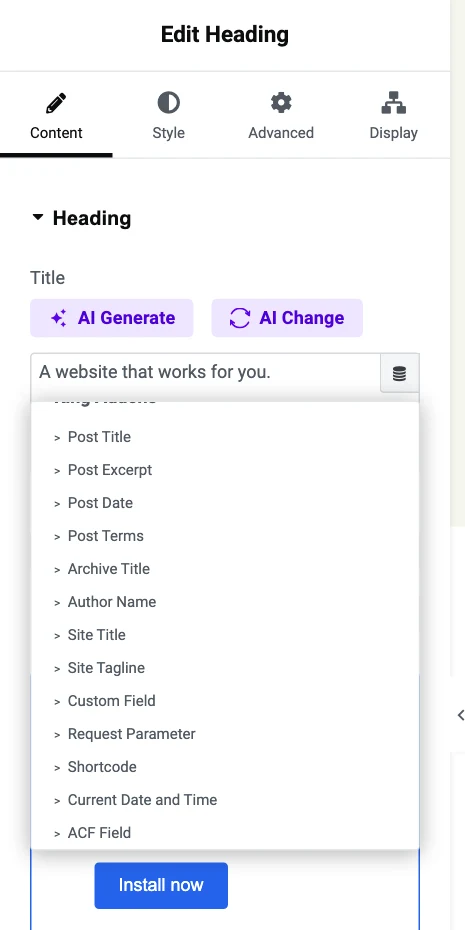
In a compatible Elementor control, open the dynamic tag picker and find the King Addons group. Choose ACF Field for supported text-like fields or ACF Image for an image control.
Choose the field and context
Open the tag’s settings and select the field. When editing a reusable theme template, preview the post that owns the value.
Check the license and fallback
The ACF sources are Pro tags. On Free they can remain visible in the picker but do not render the premium value. Configure a suitable fallback for entries without data.
Check the result
Preview two entries with different values and one with an empty field. Confirm that the correct entry supplies the data. The source picker was checked locally; premium rendering requires active Pro access.
Common questions
Are ACF tags free?
No. The reviewed King Addons ACF Field and ACF Image tags are Pro sources.
Why can I see a Pro tag but no value?
The picker can list Pro sources on Free. Check the active license, field value and preview context.