
Configure the King Addons Cookie Consent extension, write your notice and connect the consent behavior to the scripts your website actually uses.
Before you start
An inventory of the cookies and third-party scripts on your site, plus links to your own policies. A banner alone does not establish legal compliance.
Set it up in WordPress
Open Cookie Consent
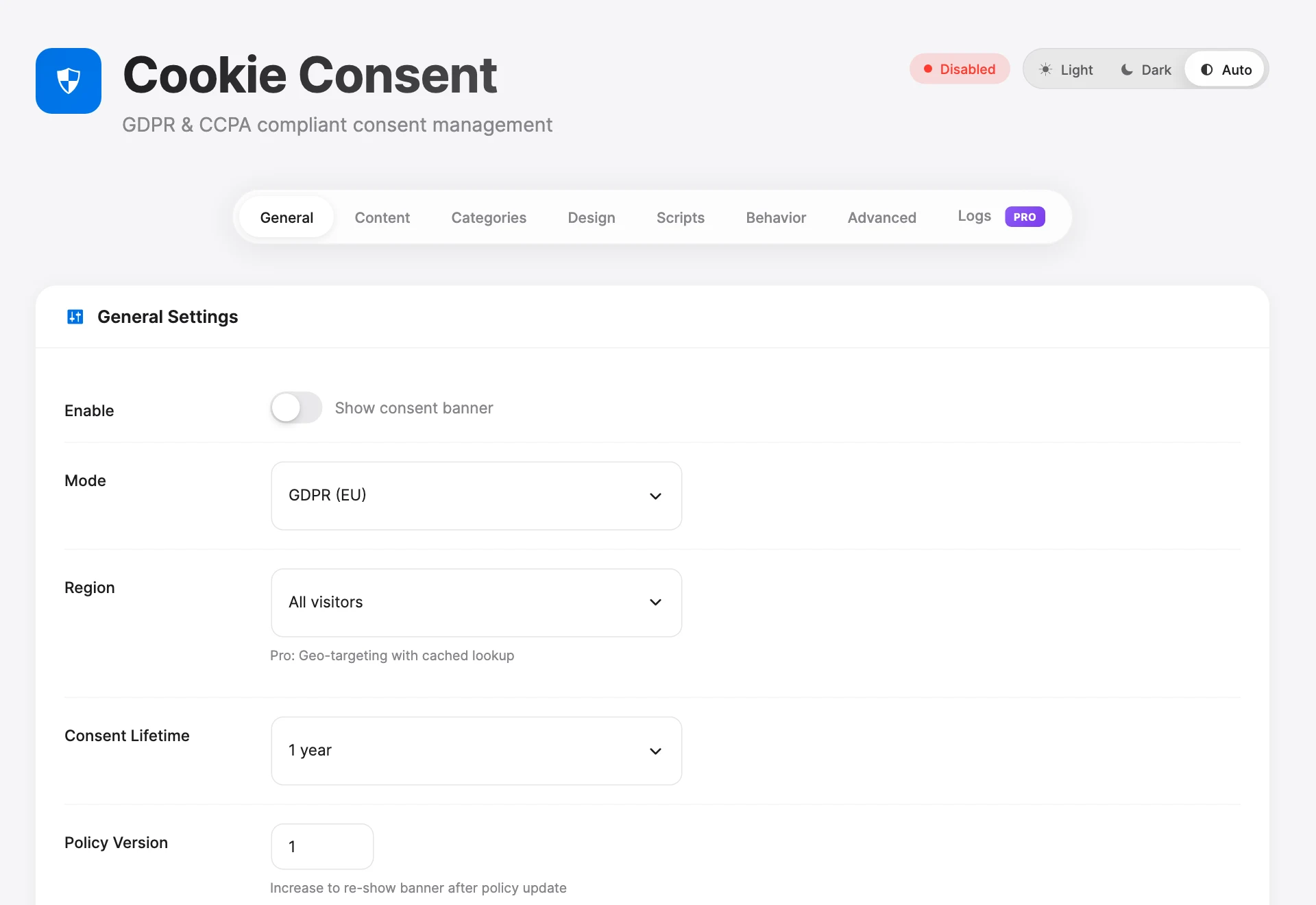
Find Cookie / Consent Bar under King Addons. Review General and choose the mode appropriate to your setup.
Write the notice and categories
Use the Content and Categories tabs to explain the choices. Link to the policy that describes your real services.
Configure script behavior
Review Scripts and connect optional scripts to the appropriate consent choices. Simply displaying the banner does not stop an unrelated script added elsewhere.
Match the visual design
Use Design and Behavior to set a readable notice and clear controls. Avoid a layout that blocks the close or preference controls on a phone.
Test a fresh visitor session
Clear the relevant consent state or use a fresh session. Check accept, reject and preference changes, and inspect the scripts loaded under each choice.
Check the result
Confirm which scripts load before and after each consent choice. This is a technical setup guide, not a legal assessment.
Common questions
Does enabling a banner block every tracking script?
Review the script integration. Scripts added through another tool may need separate configuration.